

A pull request that nobody knows exists doesn't get reviewed. That sounds obvious, but it's the actual root cause behind most "why did this sit for three days" conversations: not a broken review process, a notification that never reached the right person, or reached them buried in an inbox they check twice a day.
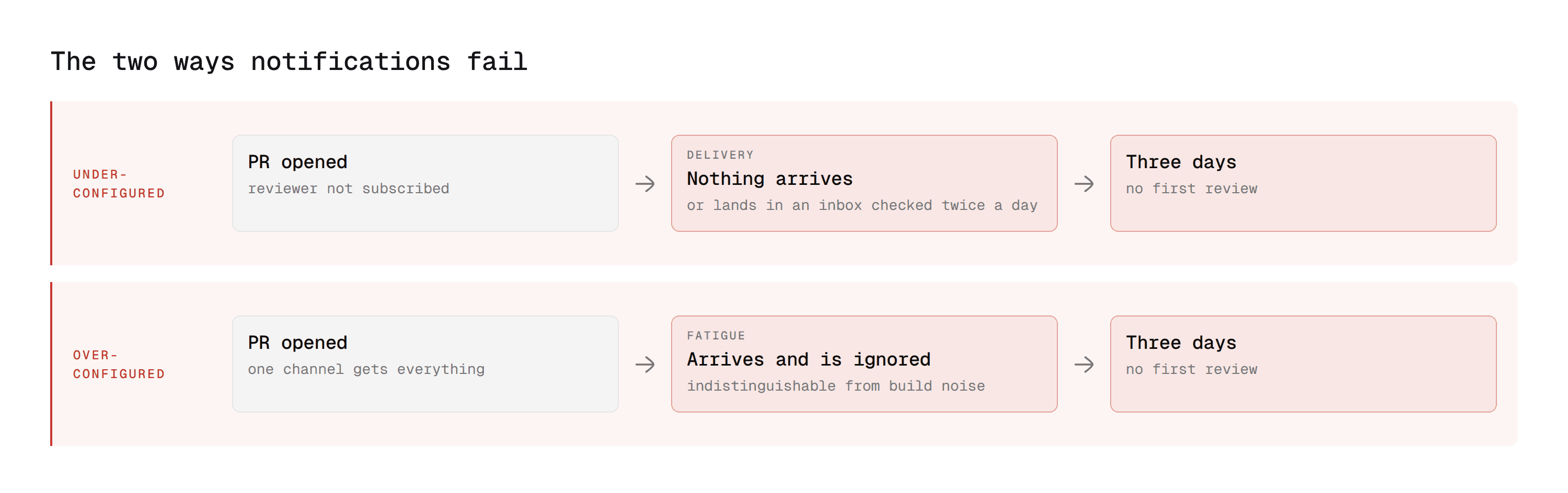
Azure DevOps has real notification infrastructure covering email and Microsoft Teams, layered enough that most teams either under-use it (missing PRs) or over-configure it (so much noise that real notifications get ignored too). This guide covers both directions: getting notifications where they'll actually be seen, with a close look at Azure DevOps Teams integration specifically, and then cutting the volume back down once they are.
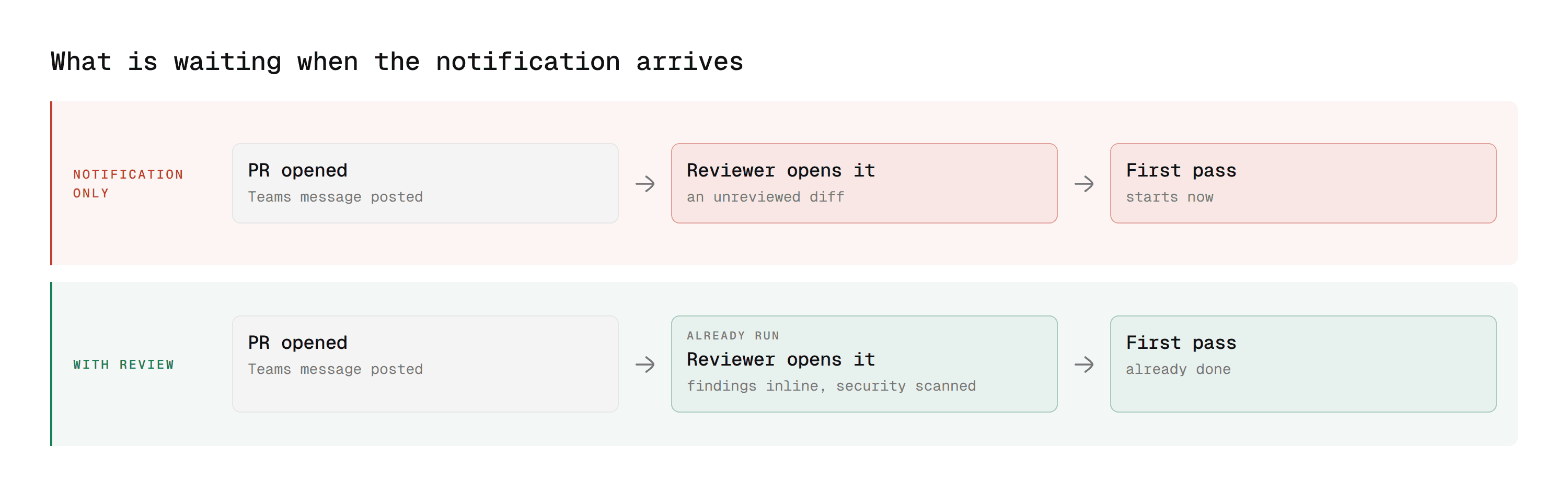
Where this connects: Notifications solve the problem of nobody knowing a PR exists. They do not solve the wait once someone opens it. CodeAnt AI posts AI code review and security scanning findings inline the moment a PR is created, so the first pass of feedback is already there when the notification lands.
Key Facts at a Glance
Question | Short answer |
|---|---|
Two notification levels | Personal, set in your own profile. Team, project and org, set in Project Settings |
Teams integration | The native Azure Repos app for Teams, installed per channel |
Command to start |
|
Hard requirement | Azure DevOps and Teams must share the same Microsoft Entra tenant |
Permission needed | Project Administrators, to create a subscription |
Org setting needed | Third-party application access via OAuth, enabled |
Deprecated path | Office 365 Connectors. Use the Workflows app instead |
Self-hosted | The native Repos app reaches Azure DevOps Server later, if at all. Use webhooks |
Email Notifications: Personal and Team-Level
Azure DevOps subscribes every user to a set of default PR notifications out of the box, covering the common cases (you're added as a reviewer, someone comments on your PR, your PR is completed or abandoned). These live at two levels.
Personal notifications are per-user and configured from your own profile, not project settings. Each person controls what they personally get notified about, independent of team-level rules.
Team, project, and organization-level notifications are configured centrally (Project Settings, then Notifications) and apply to everyone matching the subscription's criteria, useful for ensuring a whole team gets notified about specific events regardless of individual settings.
A detail worth knowing when configuring team-level subscriptions: the "Members of <Team> by role" delivery option lets you target specific roles rather than the whole team. Creator and Reviewer are self-explanatory.
Two roles are less obvious:
Changed reviewers applies when a push triggers a path-based policy that adds a new required reviewer mid-review (our required reviewers guide covers how those path-based policies work).
Reset reviewers applies when a "Reset votes on new pushes" policy clears an existing approval after a new commit, notifying the reviewer whose vote just got reset that they need to look again.
The Skip initiator option, available on most subscription types, controls whether the person who triggered an event (pushed the commit, added the comment) also gets notified about their own action. Most teams turn this off to cut a small but real source of noise.
What's included by default
Out of the box, without any configuration, personal notifications typically already cover: you're added as a reviewer on a PR, someone comments on a PR you're involved in (as author or reviewer), your PR is approved, rejected, or has changes requested, your PR is completed (merged) or abandoned, and you're @mentioned in a PR comment.
This baseline is usually enough for individual contributors who mainly care about PRs they're directly part of. Team-level subscriptions become necessary once you need visibility beyond what any one person's default settings would cover, a lead wanting to see every PR across a repo regardless of whether they're personally tagged, for instance.
Microsoft Teams Integration: What's Actually Available
Azure DevOps Teams integration is where most of the real configuration work happens, and where the setup has genuinely changed in the last year, so it's worth being specific about what's current.
The native Azure Repos app for Teams
Azure DevOps has a dedicated Repos app for Microsoft Teams, separate from the Boards app (work items) and Pipelines app (builds and releases), each installed and configured independently depending on which events a given channel actually needs.
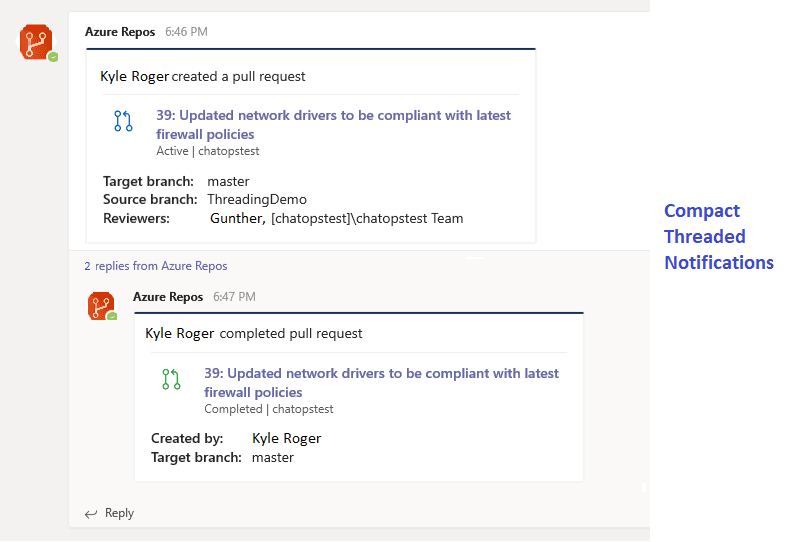
Once installed in a channel, typing @azure repos subscribe sets up a default subscription to the "Pull request created" event for the main branch. From there, @azure repos subscriptions lists everything the channel is currently subscribed to, and you can add or remove subscriptions with additional filters (specific branches, specific event types like PR updates or code pushes) directly from chat, without leaving Teams. Notifications for the same PR get threaded together in the channel, so a PR's full activity history stays grouped instead of scattered across separate messages.
Beyond the subscription commands, the app also supports a compose extension, letting anyone in the channel search for and share a specific pull request inline in a conversation without switching to the browser. That matters more than it sounds: a lot of the "let me pull that up" friction in a review discussion disappears when the PR itself can be dropped into the chat directly.
Which events are actually available to subscribe to
For Git repositories specifically, the events available through the Repos app cover pull request creation, pull request updates (including new commits pushed to an open PR), and code pushes to specific paths. TFVC repositories (still common in older Azure DevOps Server environments) get a comparable but distinct "Code checked in" event instead, filterable by path using the $/project/path format.
Team administrators can view and manage subscriptions created by other team members, but there's a permission hierarchy worth knowing: subscriptions created by a Project Administrator can't be removed or modified by a Team Administrator. If a subscription seems stuck and a Team Admin can't change it, checking who originally created it is usually the fastest way to understand why. Our permissions guide covers the broader access model these roles sit inside.
Requirements that actually block this (read before troubleshooting)
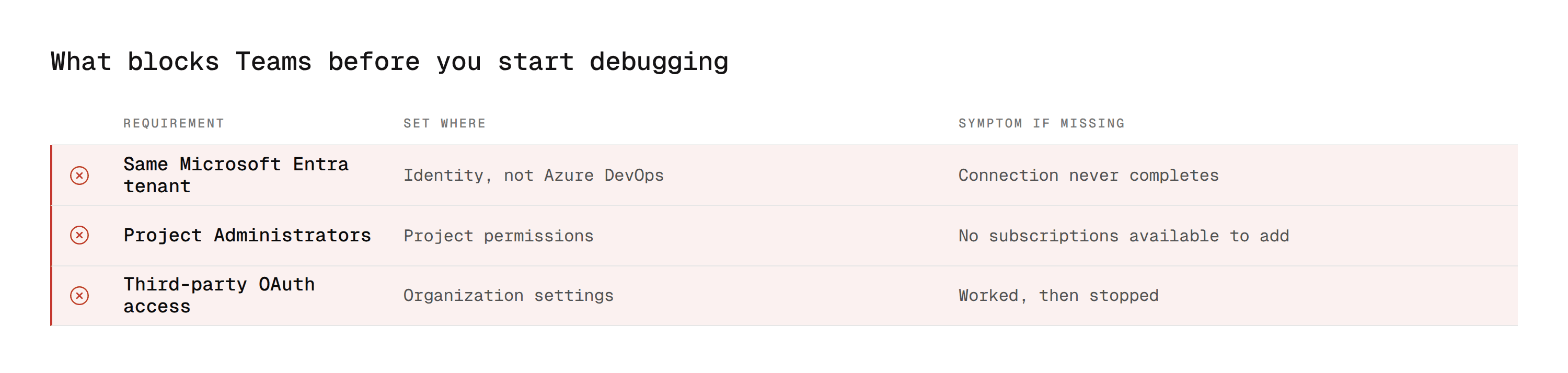
Three requirements catch teams off guard, and knowing them upfront saves the troubleshooting cycle most people go through first:
Same Microsoft Entra tenant, no exceptions. Your Azure DevOps organization and your Microsoft Teams account have to sit in the same Microsoft Entra tenant to connect. Matching email addresses across the two doesn't help if the underlying tenants differ, this is the single most common reason a connection silently fails to work.
Project Administrator permission to create subscriptions. Setting up a new subscription in a channel requires membership in the Project Administrators group. A team member without that role can view existing subscriptions but can't add new ones.
Third-party application access enabled. Azure DevOps organization settings need "Third-party application access via OAuth" turned on before Teams notifications can be received at all. This is an org-level setting, not something an individual project can override on its own.
Cloud vs self-hosted: a real limitation
The native Azure Repos Teams app is available on Azure DevOps Services (cloud) first, and reaches Azure DevOps Server (self-hosted) later, if at all, following the general pattern where cloud features arrive before their on-premises equivalent, sometimes a full major version behind. If you're running Azure DevOps Server and this integration isn't available yet, the webhook-based approach below works regardless of deployment model.
Office 365 Connectors are being retired, here's what replaces them
If you're following an older tutorial that references Office 365 Connectors for Teams, that path is actively being phased out. Microsoft has been retiring Office 365 Connector creation across Teams, with the Workflows app as the direct replacement, offering better scalability and security for the same "post a message when X happens" pattern.
To set this up: in Teams, open the channel menu, select Workflows, and choose a webhook-style template (for example, "Send webhook alerts to a channel"). This generates a webhook URL. Configure an Azure DevOps service hook pointed at that URL, filtered to the PR events you actually want (created, updated), and Teams starts receiving formatted messages on those events without relying on the deprecated Connector path.
Advanced: Custom Notification Routing with Webhooks
The native Repos app covers the common case well. For anything more specific, different event types routed to different channels, custom message formatting, filtering based on which files changed, the underlying mechanism is the same Azure DevOps service hook and REST API pattern covered in our REST API and webhooks guide.
The pattern: an Azure DevOps service hook fires on a PR event, hits a small piece of custom code (commonly an Azure Function), and that code decides what to post and where, potentially checking PR metadata first (which repo, which reviewer, how large the diff is) before deciding whether a notification is even worth sending. This is the right approach once "post every PR event to one channel" stops being granular enough for how a team actually wants to be notified.
A concrete example of where this earns its complexity: routing PRs that touch /src/auth/** or /src/security/** to a dedicated security-review channel, while everything else goes to the general engineering channel, using the same path-filter logic covered in our branch policies guide for auto-included reviewers, just applied to notification routing instead of reviewer assignment. The webhook payload includes the changed file paths, so the routing logic is a straightforward check against that list before deciding which Teams webhook URL to post to.
Reducing Notification Fatigue
Getting notifications flowing is only half the problem. Left unmanaged, PR notifications become exactly the kind of noise people learn to ignore, which defeats the purpose just as thoroughly as no notifications at all.
Route by event type, not just by project. A channel that gets every PR created, every PR updated, every comment, and every build result becomes unreadable within a week. Split subscriptions so PR creation goes to a review-focused channel, build failures go to a build-status channel, and so on, rather than funneling everything into one general "dev" channel.
Use branch filters aggressively. The default
@azure repos subscribetargetsmain, which is usually right, but confirm any additional subscriptions aren't also firing on every feature branch push. A subscription without a branch filter notifies on activity across the entire repository, which is rarely what anyone actually wants.Turn off Skip Initiator where it applies. Covered above, but worth repeating here since it's one of the highest noise-to-value cuts available: nobody needs to be told they just did the thing they did.
Separate "needs your review" from "FYI." If your team relies heavily on required reviewers and auto-included path-based reviewers, consider whether general PR-created notifications to a whole channel are adding value beyond what the individually-notified required reviewer already gets. Often the channel-wide notification is redundant with a more targeted one that already exists.
Revisit team-level subscriptions when the team changes. A subscription configured for a team of 5 makes different sense at a team of 20. What was "everyone should see this" at a small size becomes real noise once headcount grows, worth an actual periodic review rather than assuming the original configuration still fits.
Distinguish urgent from informational in the message itself, not just the channel. If custom webhook routing is in play, a security-critical finding and a routine PR-created notice shouldn't look identical in the channel. Even a simple visual distinction (a different message format, an explicit severity label) helps a channel full of notifications stay scannable instead of uniform noise someone has to open each one to triage.
Knowing whether the setup is actually working
A notification system that's technically configured isn't the same as one that's actually improving review speed.
A couple of signals worth checking periodically rather than assuming the initial setup is still doing its job: whether PR time-to-first-review has actually improved since notifications were configured (if it hasn't, the notifications may be arriving but getting ignored, which is a fatigue problem, not a delivery problem), and whether team members can name, off the top of their head, which channel PR notifications for their repo actually land in.
If they can't, the routing is probably too scattered to be useful even when it's technically firing correctly.
Troubleshooting Common Issues
"I set up the Azure DevOps connector but PRs aren't notifying"
This is a genuinely common report, and if you're using the older Office 365 Connector path rather than the Workflows app, that's very likely the cause. Connectors are being actively retired, and even where they still technically function, they're the less reliable path going forward. Migrate to the Workflows app setup described above rather than debugging a Connector that's on its way out regardless.
"The Teams app shows no subscriptions available to add"
Usually a permissions issue, not a configuration one. Confirm the account trying to add a subscription is actually a member of Project Administrators, viewing subscriptions and creating them require different permission levels, and it's easy to assume you have the latter because you can see the former.
"Notifications worked, then stopped"
Check whether "Third-party application access via OAuth" got disabled at the organization level, sometimes as part of an unrelated security tightening pass, this setting can get flipped off without anyone connecting it to the Teams integration breaking as a result.
"My email and Teams account match, but it still won't connect"
This is almost always the Microsoft Entra tenant mismatch described above. A matching email address doesn't mean matching tenant. Confirm both Azure DevOps and Teams are provisioned under the same Entra tenant, not just associated with the same email.
Where CodeAnt AI Fits
Notifications answer one question: who knows a pull request exists. They do not touch the question that actually decides how long it sits, which is what happens in the hour after someone opens it. That hour is where the three days come from. The reviewer has the tab open, the diff is 400 lines, and nothing in it is labelled.
1. The first pass has already run when the notification lands
CodeAnt AI reviews the pull request the moment it is created, through the same service hook mechanism covered in our REST API and webhooks guide. By the time the Teams message posts, the summary is written and the findings are inline on the lines they apply to.
The reviewer opens a change that has already been read. That is a different task from opening one that has not.
2. Security findings arrive with the notification, not in a weekly report
SAST, SCA, IaC scanning, and secret detection run in the same pass as the review rather than on a schedule.
That matters for the routing problem this guide describes. A security finding that arrives three days later, detached from the change that caused it, needs its own channel, its own triage, and someone to reconstruct the context. One that arrives on the pull request needs none of that.
Findings carry Steps of Reproduction showing the full path rather than a rule identifier, so the reviewer can judge them without a second tab.
3. It posts a status check, so the important ones are not just a message
The fatigue section above makes the case for distinguishing urgent from informational. A status check does that structurally rather than visually.
A critical finding is not a notification competing for attention in a channel. It is a branch policy condition that holds the merge until someone deals with it, and that is the one signal nobody learns to ignore.
The Azure DevOps integration page covers setup, and the full guide covers what runs on each pull request.
A Notification Nobody Reads Is the Same as No Notification
Every team that configures Azure DevOps notifications is solving one of two problems, and they pull in opposite directions. Either the right person never hears about the pull request, or they hear about everything and have stopped listening.
The fix for the first is delivery, which is the Teams app and the subscription settings. The fix for the second is restraint, which is branch filters, event-type routing, and turning off the notifications nobody acts on. Most teams do the first and skip the second, then wonder why time to first review never moved.
Where to start this week
Pick your busiest repository and open the Teams channel where its notifications land. If you cannot name that channel without checking, that is your answer and the routing is the problem, not the delivery. If you can, scroll back through a week of notifications and count how many led to someone actually opening a PR.
Anything under a third means you are routing on project rather than on event type, and splitting PR-created from build-status into separate channels is the single highest-value change available.
If notifications are arriving and reviews are still slow once someone opens the PR, that is a review-capacity problem rather than a notification one. CodeAnt AI posts its findings inline the moment a PR is created, so the first pass has already happened by the time anyone reads the alert.
Book a walkthrough with our team →
Related reading
Azure DevOps AI Code Review Guide: what happens on the PR once someone actually opens it.
Automate Pull Requests in Azure DevOps: the service hook and REST API layer behind custom notification routing.
Required Reviewers in Azure DevOps: path-based assignment, which drives the Changed reviewers and Reset reviewers notification roles.
Branch Policies in Azure DevOps: the path-filter syntax reused for notification routing above.
Code Review Permissions in Azure DevOps: the permission hierarchy behind who can create and modify subscriptions.

